Inventory
Verification status
What each verification status of a secret means and what to do for each one.
Cremit checks with the issuing service whether each secret it finds still works. The result is the verification status. It appears in the Verification column of the list and as Verification result on the details page.
What each status means
| Status | Meaning | What to do |
|---|---|---|
| Valid | The issuing service confirmed that it works now. | Replace it with a new secret and revoke the exposed one. It appears in Needs action. |
| Valid (manual review) | A person recorded it as valid. | Handle it like a valid secret. After revoking it, record the revocation with evidence. |
| Revoked | The issuing service reported that it does not work. | Nothing to do now. |
| Revoked (manual review) | A person recorded the revocation with evidence. | Nothing to do now. |
| Awaiting verification | The verification result has not arrived yet. | Wait for the result. |
| Inconclusive | It was checked, but no answer showed whether it works. | This does not mean it is safe. Request re-verification or check it yourself. |
| Needs manual review | It cannot be decided automatically, so a person needs to check it. | Read the reason on the details page and record a verdict. |
Badges in the list show verdicts recorded by a person as Valid or Revoked too. Hover over a badge to see whether a person recorded it.
Secrets with several detection records
When the same secret is found in several places, each detection record has its own verification status. The list shows the riskiest one. From most to least risky: Valid, Valid (manual review), Needs manual review, Awaiting verification, Inconclusive, Revoked, Revoked (manual review).
Filter the list by status
Choose a verification status under Risk in the Filters panel.
- Revoked secrets that were never confirmed valid are left out of the default list. Choose Never confirmed valid to see them.
- Inconclusive secrets and secrets needing manual review that were never confirmed valid may be false positives, so they are left out of the default list. Choose Never confirmed (possible false positive) to see them.
- The Revoked after exposure quick filter shows secrets that were once valid and are now revoked.
- The Needs manual review quick filter shows secrets that were once valid and are now inconclusive or need manual review.
Request re-verification
- On the secret's details page, open the Action · Storage · Operations tab.
- In Check and respond, select Re-verify after revocation. When a remediation case is in progress, this button is inside the case.
- The result appears for each detection record. Records verified in the last five minutes are not requested again.
You can also select several secrets in the list and choose Re-verify, up to 10 at a time. Verdicts recorded by a person cannot be re-verified. When a secret cannot be re-verified, the reason appears in place of the button.
Record a verdict yourself
- On the Action · Storage · Operations tab of the details page, go to Check and respond. If the secret needs manual review, the reason is shown here.
- Choose an option under Classification.
- Select Apply verdict.
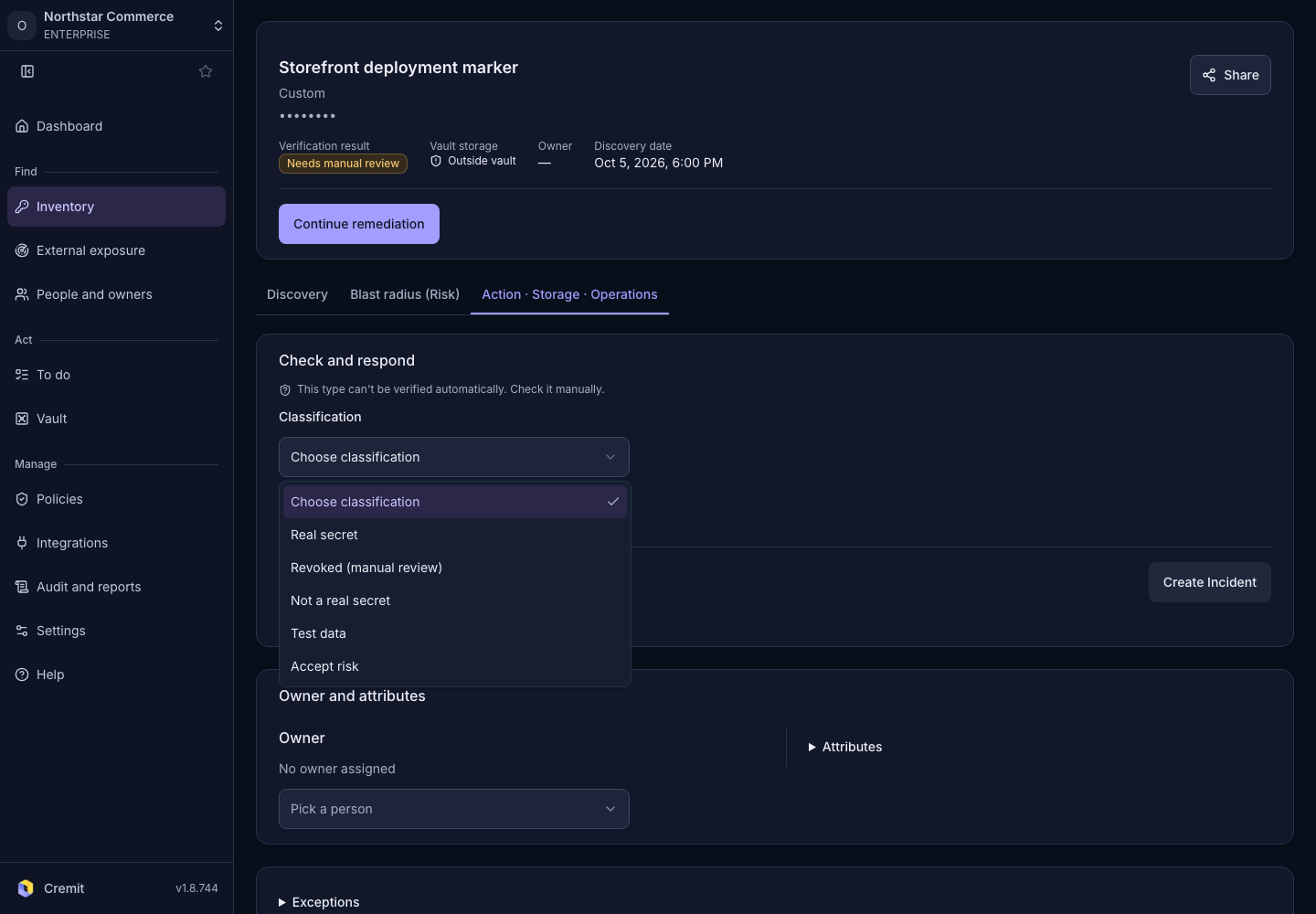
| Choice | Result |
|---|---|
| Real secret | Recorded as Valid (manual review). |
| Revoked (manual review) | You must enter Revocation evidence. This choice appears only on secrets that accept a manually recorded verdict. |
| Not a real secret, Test data, Accept risk | The secret is marked as an exception and left out of the default list. See Hide results and false positives. |
Valid and revoked verdicts can be recorded only for secrets that have no automatic verification. For secrets that can be verified automatically, re-verification changes the status. This area is shown only to roles that can edit secrets.