Inventory
Access scope
How to read the permission analysis results and access paths of cloud keys on the access scope screen.
Access scope shows what permissions the detected cloud keys have. Open it from the Inventory menu; owners, admins and members can see it. The list includes only the secrets you can see.
Permission analysis needs a permission analyzer connected to the cloud account. To connect one, see AWS permission analysis and GCP API key restriction analysis.
Analysis results tab
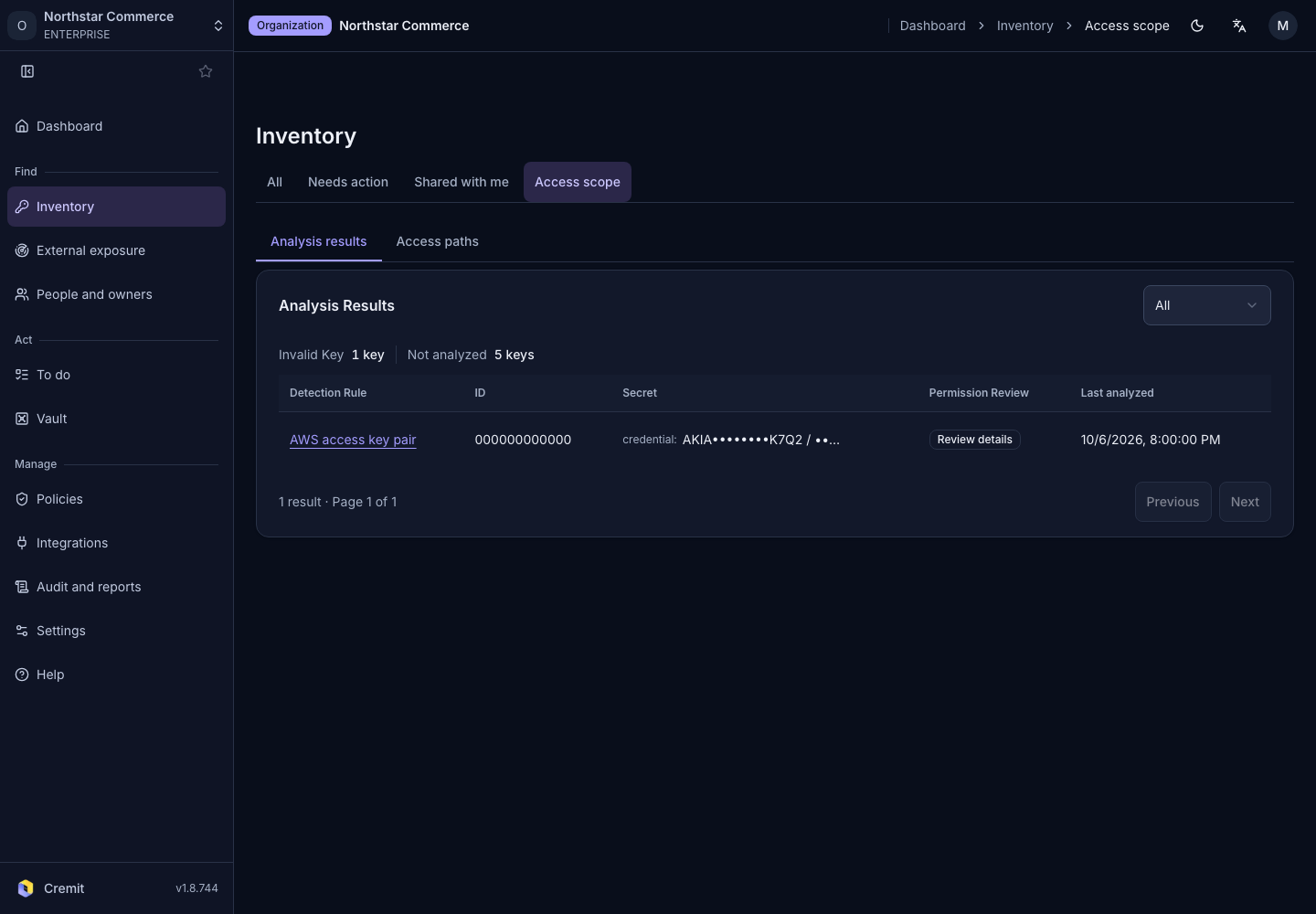
The Analysis results tab lists AWS and GCP keys whose permission analysis is complete, most recently analyzed first. Use the list at the top right to narrow it to All, AWS or GCP.
| Column | Meaning |
|---|---|
| Detection Rule | The detection rule that found the key. Select it to open the secret's details. |
| ID | The AWS account ID or GCP project the key belongs to. Shown to owners and admins only. |
| Secret | The key value, partly masked. |
| Permission Review | Shows Owner or Editor when the key has that level of permission. Otherwise it shows Review details. |
| Last analyzed | When the key was last analyzed. |
Keys not analyzed yet
Above the table, keys that are due for analysis but have no result yet are counted by status. A status with no keys is not shown.
- Pending, Processing: the key is waiting for analysis or being analyzed.
- No Analyzer: no analyzer is connected to the key's account.
- Invalid Key: the key is not valid, so it could not be analyzed.
- API Error, Timeout: an error occurred during analysis.
- Skipped: analysis was skipped for the key.
- Not analyzed: the key has never been analyzed.
To add or check analyzers, select Manage analyzers at the top right. When no analyzer is connected, the button reads Connect analyzer.
Access paths tab
If leak impact analysis is available to your organization, the Access paths tab also appears. It shows, key by key, what a leaked key could reach.
- Narrow the list with Analysis evidence and Policy scope.
- Select a key name to expand its Leak impact below the list.
Policy scope is one of Administrator access, Production data access, Limited scope or Unknown. Analysis evidence tells you where the result came from: Connected account is a connected analyzer, Opted-in key query is a direct check made with a key you allowed to be queried, and Verification response scopes is the permission scope returned with a verification response.