Integrations
Google Cloud Storage
Select Cloud Storage on a Google Cloud project connection to set up bucket scanning.
Connect Cloud Storage scanning
- In Scan Sources, select Google Cloud Storage.
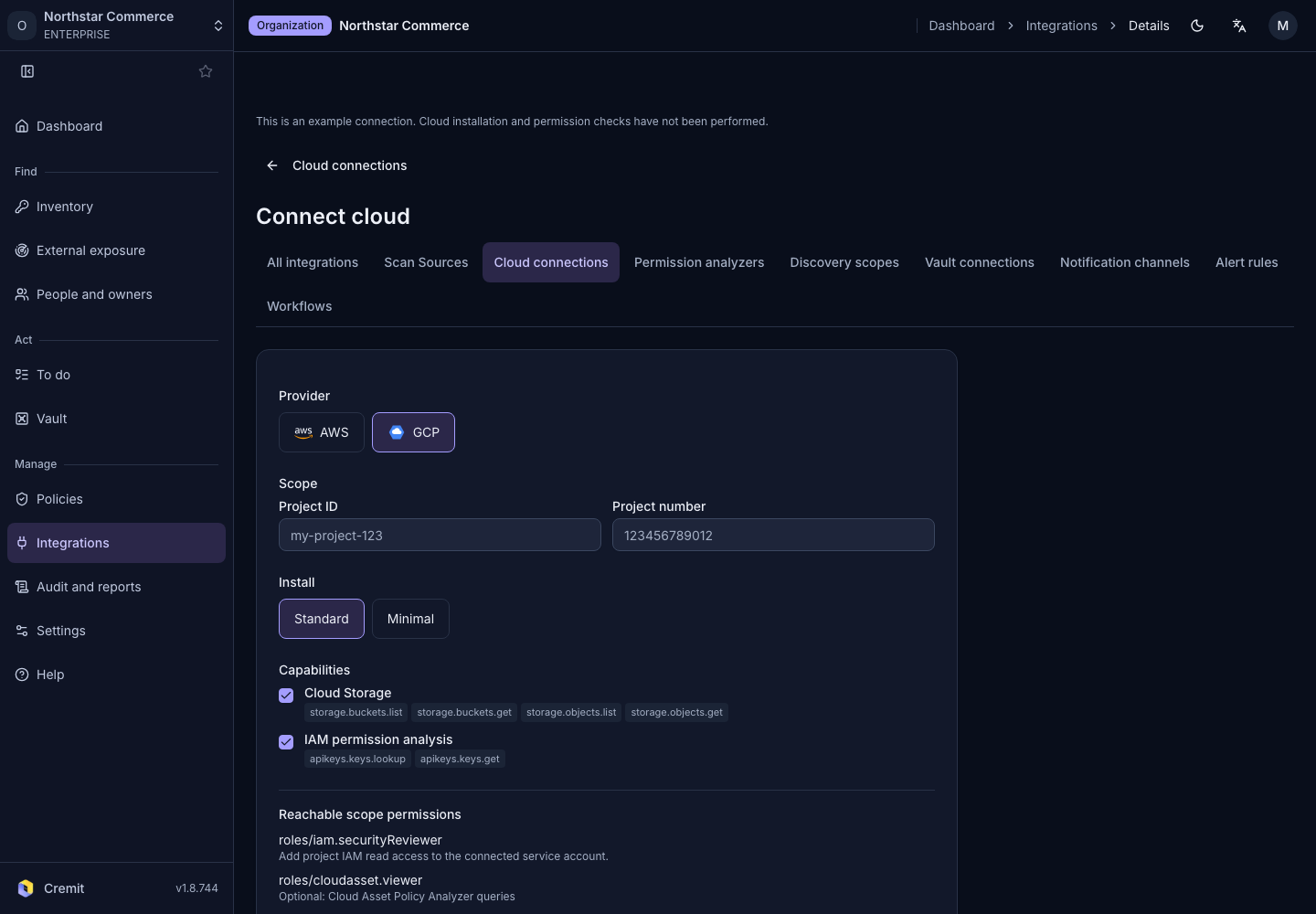
- Check that the cloud connection form has GCP selected.
- Enter the bucket project's ID in Project ID.
- Enter that project's number in Project number.
- Choose an installation mode under Install.
- Check that Cloud Storage is selected.
- Select Create connection to open the connection detail.
In Setup, choose the script or Terraform format and save it with Download. Review its project and permissions before applying it in Google Cloud. After application, select Verify. Google Cloud projects explains the installation modes and setup sequence.
Check buckets and scans
Return to Scan Sources and open the new Cloud Storage source. Enable the discovered buckets you intend to scan and review their latest scan status. If buckets are missing, check the project selection and scanning feature's usage state in the connection detail.