Getting started
Roles and permissions
What each of the four organization roles can see and do, and how to change someone's role.
Everyone in an organization has one of four roles. The role decides which menus a person sees and what they can do.
The four roles
| Role | Description |
|---|---|
| Owner | The current organization owner. Can transfer ownership and delete the organization. |
| Admin | Manages organization settings and members. Some actions, including SSO configuration and SCIM token issuance, remain owner-only. |
| Member | Views and handles secrets and incidents. Cannot change integrations or organization settings. |
| Guest | Sees only the secrets other members shared with them. |
What each role can do
| Action | Owner | Admin | Member | Guest |
|---|---|---|---|---|
| View Dashboard and Inventory, and handle secrets | ✓ | ✓ | ✓ | – |
| Create and update incidents | ✓ | ✓ | ✓ | – |
| Delete incidents | ✓ | ✓ | – | – |
| View Scan Sources, Detection Rules and Workflows | ✓ | ✓ | ✓ | – |
| Add, change and delete Scan Sources, Detection Rules and Workflows | ✓ | ✓ | – | – |
| Manage Vault connections, Notification channels and Alert rules | ✓ | ✓ | – | – |
| Invite members, change roles, remove members | ✓ | ✓ | – | – |
| Organization settings, Audit Logs, Billing, Support Access | ✓ | ✓ | – | – |
| Ownership Transfer, Delete the organization | ✓ | – | – | – |
Screens that differ by role
- For a Member, Settings contains only My profile and API · CLI. The Audit and reports menu is not shown.
- A Guest uses a simple screen with only Home and Inventory. Home shows how many secrets were shared with them and a View shared secrets button. Guests cannot open the organization's other screens.
The screens under each menu are listed in How the menu is organized.
Change a role
An Owner or Admin can change roles.
- Open Settings › Members and teams.
- Select the menu button at the right end of the member's row.
- Under Role, choose the new role. The change applies immediately.
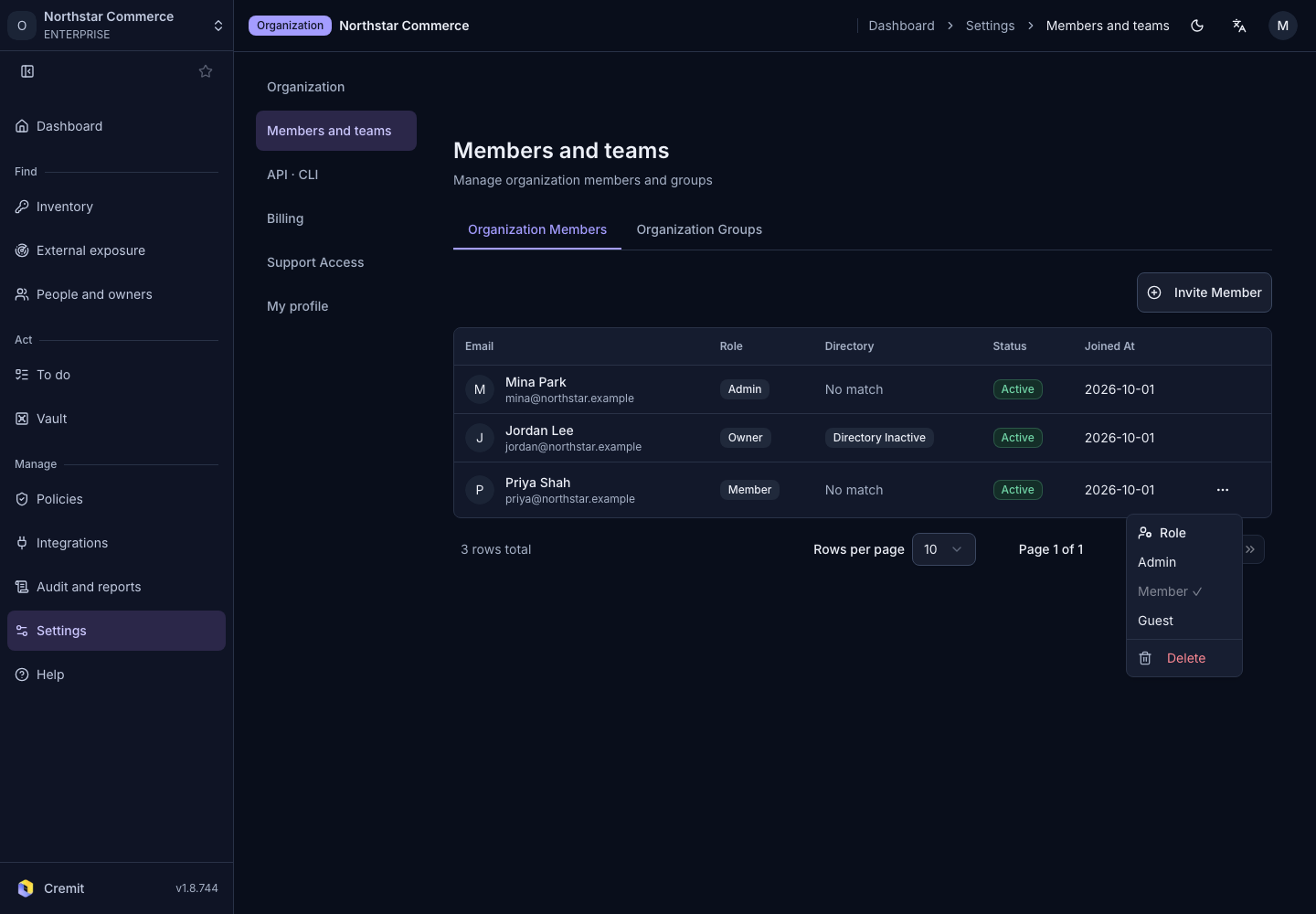
This menu offers only Admin, Member and Guest. You cannot change an Owner's role or your own.
Transfer ownership
The Owner role can only be handed over on the Ownership Transfer tab of Settings › Organization. Only the current Owner can do this, and only to another active member. After the transfer, the selected member becomes Owner and your role changes to Admin.