Inventory
Browse and filter secrets
How to find, sort, filter and open secrets in the full inventory list.
All under the Inventory menu lists every secret your organization has found in one place: secrets discovered in code and collaboration tools, items that exist only in a connected vault, and secrets added manually.
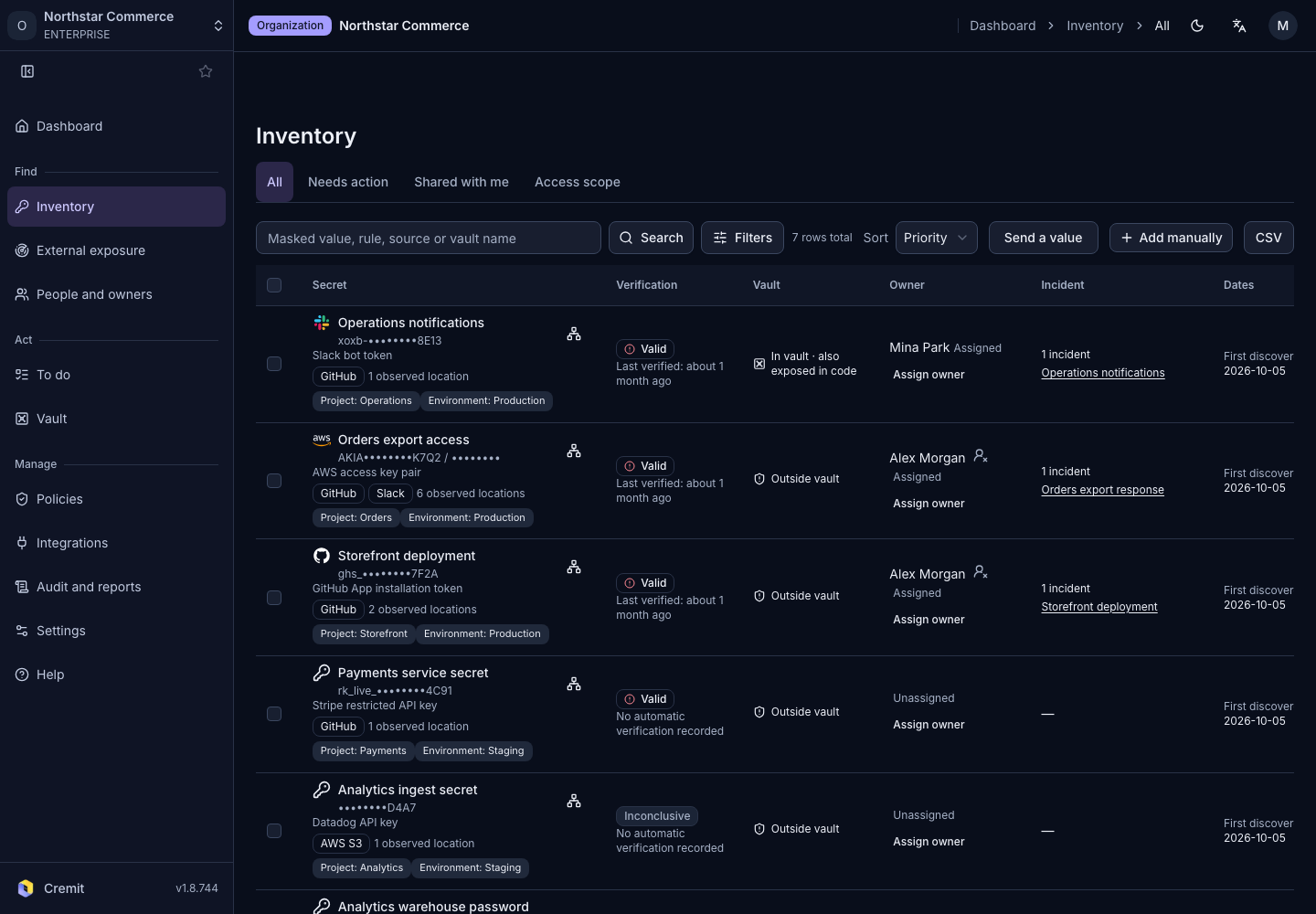
Open the list
- Open Inventory in the sidebar.
- Select All.
The list opens sorted by Priority. The number next to the page title is how many secrets match the current conditions. Guests see only the secrets shared with them, under Shared with me. See Share a secret.
When the same secret is found in several places, it appears as one row. The row shows the riskiest verification status among them.
What each row shows
The first column shows the secret's name, its masked value, the integrations it was found in, the number of observed locations and its attributes. The other columns are:
| Column | Contents |
|---|---|
| Verification | The verification status and when it was last verified. Verification status explains each status. |
| Vault | One of Outside vault, In vault · also exposed in code or In vault. Shown only when a vault is connected and you can view vaults. |
| Owner | The owner and their state (Assigned, Guessed, Unassigned) |
| Incident | Linked incidents. Shown only when you can view incidents. |
| Dates | First discovered for discovered secrets, Current version created for vault items, Secret created for secrets added manually |
Sort
Choose an order in Sort.
- Priority: puts the riskiest secrets first, comparing these criteria in turn:
- Secrets that verification found valid
- Secrets stored in a vault but still exposed in code
- Secrets whose owner's account is inactive, then secrets with no owner, then secrets with a guessed owner
- Secrets that permission analysis found to have broad, admin-level access
- Secrets currently observed by external exposure scanning
- Secrets discovered earlier
- Age, Last verified, Observed locations: change the direction in the selector next to it.
Search
Type part of a masked value, detection rule name, source or vault name in the search box. If you paste a GitHub, GitLab or Bitbucket repository URL, the search uses the repository name.
Filter
- Select Filters.
- Choose conditions in the panel that opens. The list updates as soon as you choose.
| Group | Conditions |
|---|---|
| Quick filters | Needs manual review, Revoked after exposure, Exceptions |
| Source | Added manually |
| View | Group by owner: groups the current page by owner state. |
| Risk | Verification status, detection rule |
| Locations | Integration where the secret was found |
| Owner | Me, Unassigned, Guessed, Assigned, Inactive account, a specific person or team |
| Remediation case, Vault | Remediation case state and whether the secret is in a vault. Shown only when you can view vaults. |
| Attributes | Attributes added to the secret |
The Filters button shows how many conditions are applied. In the panel, remove conditions one by one or select Clear filters.
Open a secret
- Select a row or the secret's name to open its details. Hold Ctrl (Cmd on macOS) while selecting to open it in a new tab.
- Back to inventory on the details page returns you to the list with the same conditions.
Secret details describes the details page.
Act on several secrets at once
- Select the checkboxes to the left of the rows. The checkbox in the header selects the whole current page.
- Choose an action in the bar that appears at the bottom of the screen, such as Re-verify, Create Incident or Mark as exception.
Depending on your role, the checkboxes and the action bar may not be shown, and some actions apply only to secrets discovered in code.
From the toolbar above the list you can download the list that matches the current conditions as a CSV file. To add a secret yourself, see Add a secret manually.