Getting started
How the menu is organized
How the Cremit sidebar is grouped and what each menu is for.
The Cremit sidebar follows the order in which you work with secrets: find them, act on them, then manage them. Selecting a menu opens its first screen; the other screens in the same menu appear as tabs on the page.
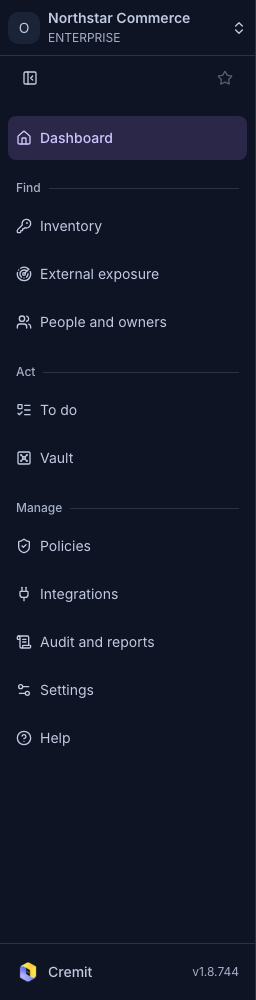
What each menu contains
| Menu | Screens |
|---|---|
| Dashboard | Organization overview |
| Inventory | All, Needs action, Shared with me, Access scope |
| External exposure | Internet-exposed assets |
| People and owners | Code author accounts, Owners, Unassigned, Inactive owners' keys |
| To do | Remediation cases, Incidents, Checklist |
| Vault | Connected vaults (opens directly, no tabs) |
| Policies | Detection Rules |
| Integrations | All integrations, Scan Sources, Cloud connections, Permission analyzers, Discovery scopes, Vault connections, Notification channels, Alert rules, Workflows |
| Audit and reports | Audit Logs |
| Settings | Organization, Members and teams, API · CLI, Billing, Support Access, My profile |
The Find, Act and Manage headings between menus only mark the groups; they are not links.
Menus by role
What you see depends on your role in the organization and on the features enabled for it. A menu with no screens available to you is not shown.
- Guests get a short menu instead, with only Home, Inventory and Documentation. In Inventory they can open only the secrets other members shared with them.
- Members see My profile and API · CLI under Settings.
- Owners and admins see every screen their permissions allow.
See Roles and permissions for the details of each role.
Favorites and collapsing
- Select the star next to a menu name to pin it. You can pin up to five menus and open them from the Favorites button at the top of the sidebar.
- The collapse button at the top of the sidebar shrinks it to icons.
- Favorites and the collapsed state are saved in your browser, separately for each organization.
Help
Help at the bottom of the sidebar links to Status, API Docs and the integration guides.