Integrations
AWS accounts
Select an AWS account and capabilities, then verify the connection after deploying CloudFormation.
Find an account in the connection list
The All, AWS, GCP, and Azure filters in Cloud connections show counts for each scope. Review permission availability and usage separately for each account capability. Check template version, date, and older-connection indicators before selecting an account. The new connection form offers AWS and GCP.
Create an AWS connection
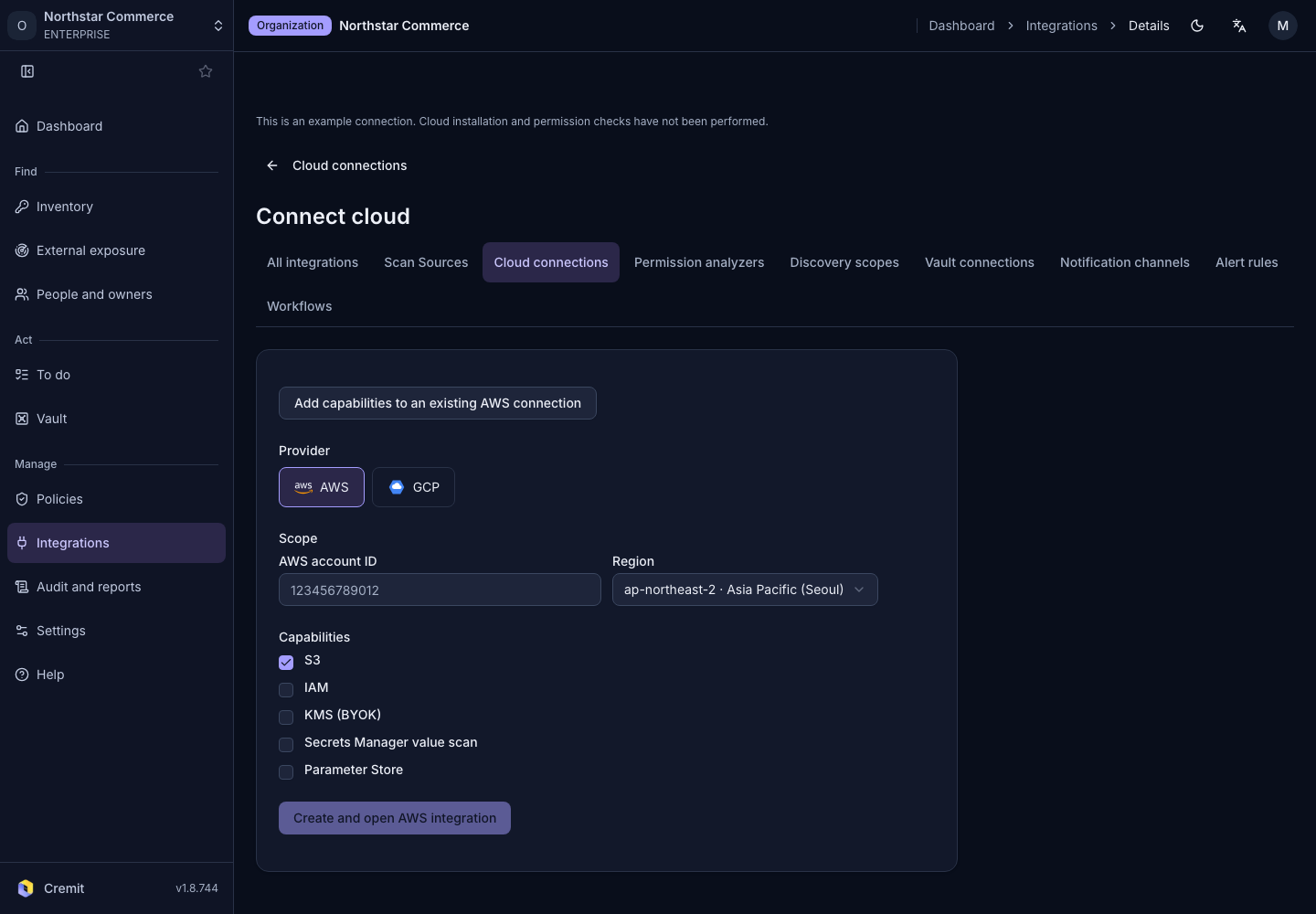
Prepare the 12-digit AWS account ID and the region for the CloudFormation stack.
- In Cloud connections, select Connect cloud.
- Choose AWS under Provider.
- Enter AWS account ID.
- Choose the deployment region in Region.
- Select the required entries under Capabilities.
- Use the versioned Download button to review the template permissions.
- Select Create and open AWS integration.
The choices are S3, IAM, KMS (BYOK), Secrets Manager value scan, and Parameter Store. The Secrets Manager choice reads values for scanning.
Check the deployed stack
Creating the connection opens AWS setup and takes Cremit to the AWS integration page. Review the account, region, and permissions, then deploy the stack using the official CloudFormation procedure.
- Return to the AWS account card in Cremit.
- Select Verify to check the deployment.
- Review permission and usage state for each capability.
The account card also shows template version and verification time. Older connections may appear alongside new ones; compare account IDs and capabilities. If a capability change is waiting for stack application, apply the AWS change before verifying again.