Inventory
Hide results and false positives
How to mark results that are not real secrets as exceptions, take them off the list, and bring them back when needed.
A result leaves the list in one of two ways: someone marks it as an exception, or Cremit keeps it out of the default list because it was never confirmed valid. Either way, scanning continues and the detection records stay.
Mark a result as an exception
Mark a result as an exception when it is not a real secret or you have decided not to act on it.
- In Inventory, select the result to open its details.
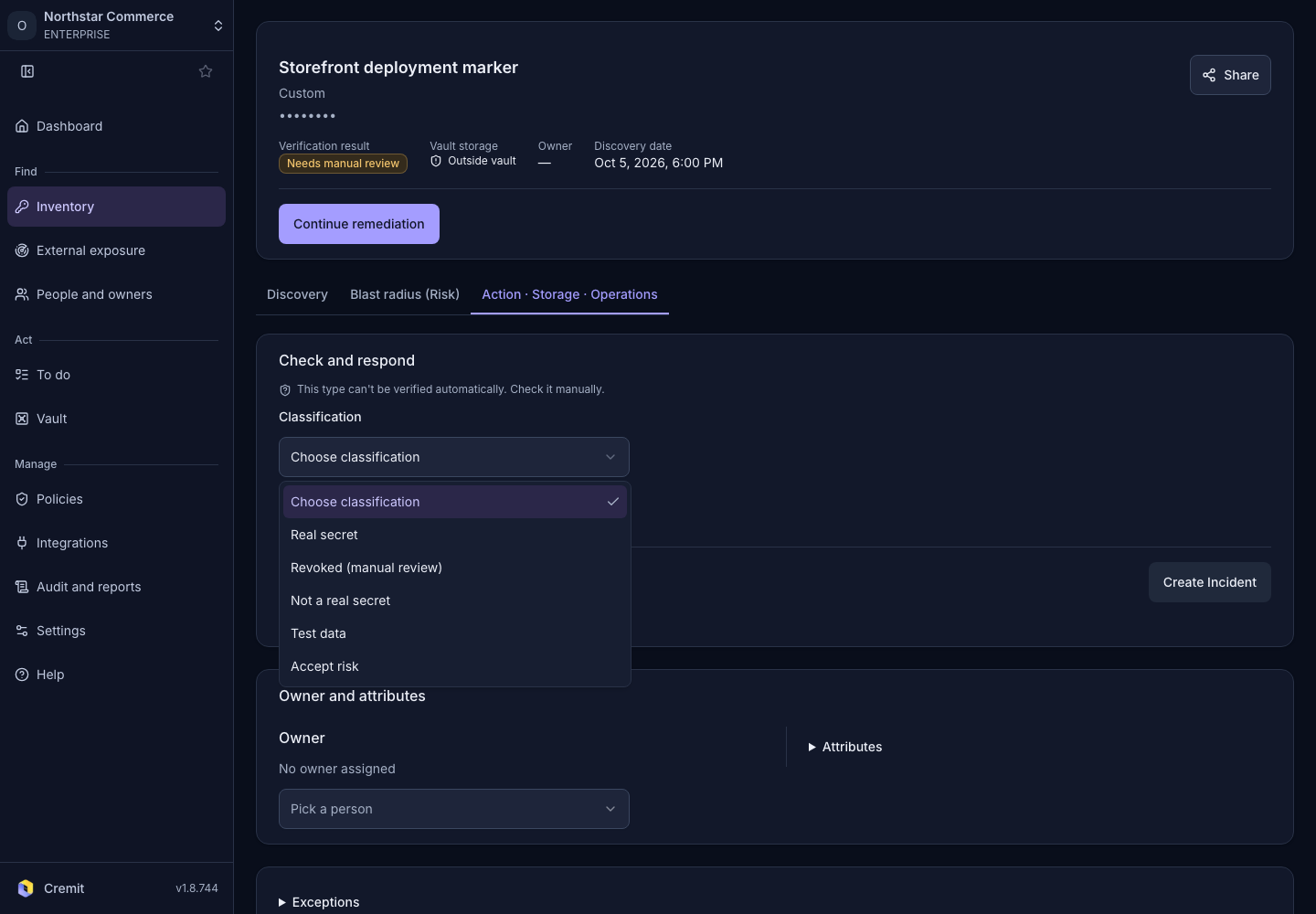
- In the Check and respond area, under Classification, choose Not a real secret, Test data or Accept risk.
- Select Apply verdict.
If the same secret has several detection records, the classification applies to all of them. Exceptions on the details page shows the reason, who marked it and when.
Mark several results at once
Owners and admins can mark several results as exceptions from the list.
- In the list, select the checkboxes of the results.
- In the action bar that appears, select Mark as exception.
- Choose a reason in Select an exception reason. Add your reasoning in the field below if you want.
- Select Mark as exception to finish.
The reasons are Not a real secret, Test data, Accepted risk, Already handled and Other. Only results detected in code can be marked as exceptions. If the selection includes a manually added secret or a vault item, the button is unavailable.
View and restore exceptions
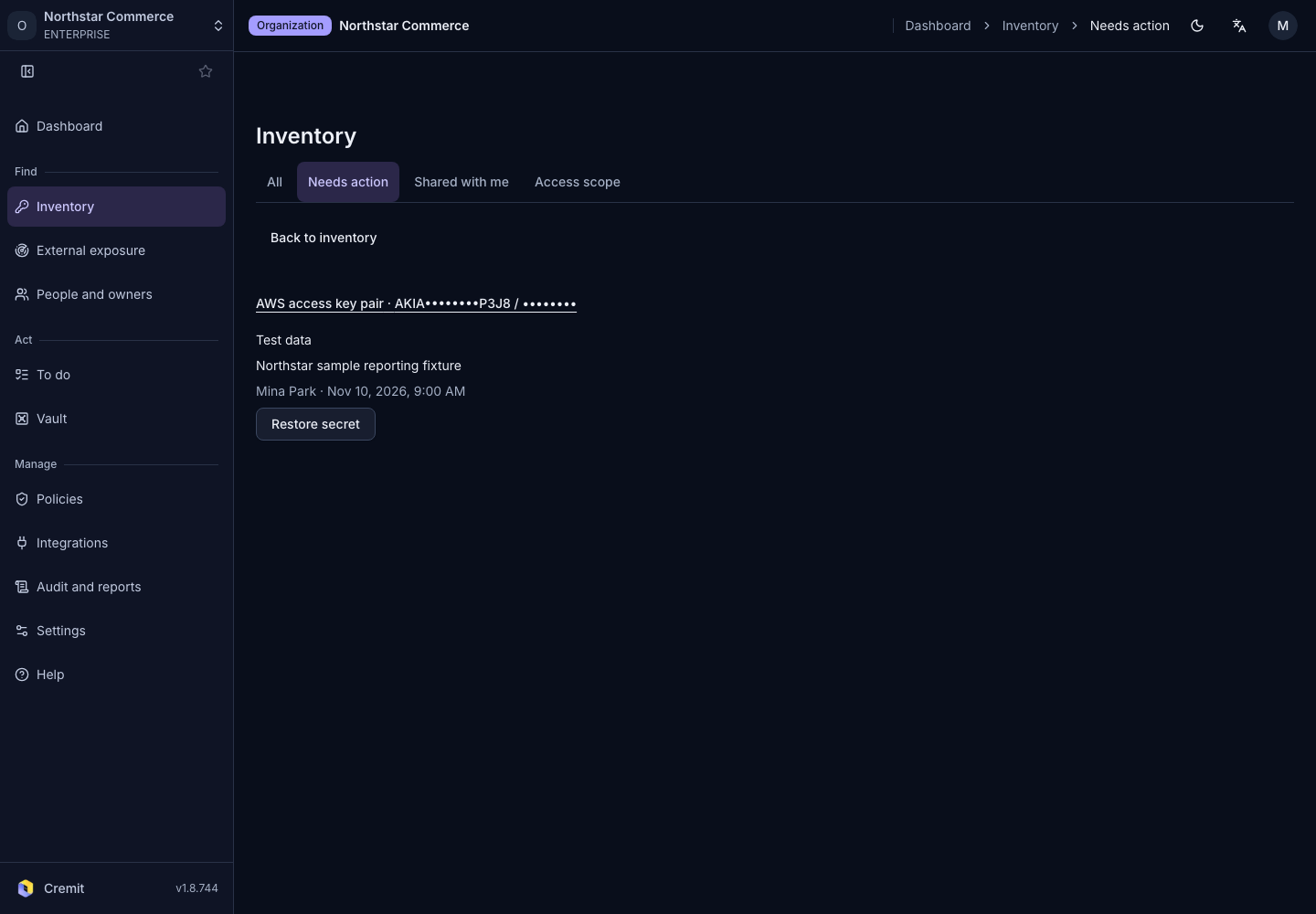
Results marked as exceptions leave the default list and its counts, and are collected on the Exceptions screen.
- At the top of the Inventory list, select Exceptions.
- Each result shows the reason, the reasoning, who marked it and when. The most recent come first.
- On the result you want back, select Restore secret.
You can also remove an exception on the details page: choose Real secret and select Apply verdict. While a result is an exception, you cannot request re-verification.
Results left out of the default list
These results do not appear in the default list, even if nobody marked them:
- Never confirmed valid, and verification has not returned a result: Never confirmed (possible false positive)
- Confirmed revoked without ever being confirmed valid: Never confirmed valid
- Judged by Cremit to be a likely false positive: Hidden
To see them, open Filters and pick the matching option under Verification. When a search returns few results, the list also shows how many matching results the default list leaves out. Select that count to go straight to each group. For what each status means, see Verification status.
Who can do this
- Owners and admins can mark results as exceptions and restore them, including several at once.
- Members can mark and restore only secrets that they or their team own, or that they were given manage permission for.
- Guests cannot mark or view exceptions.
See Roles and permissions for each role.