Getting started
Sign up and create an organization
How to sign in to Cremit for the first time, then create an organization or join one you were invited to.
There is no separate sign-up step. Your account is created the first time you sign in at argus.cremit.io.
Sign in
To sign in with your email address:
- Enter your email address on the Email tab.
- Select Get verification code.
- Enter the 8-digit code from the email in the Verification Code field.
- Select Sign in.
The code is valid for 3 minutes, and the time left is shown next to the code field. When it runs out, you go back to the email step. To get a new code, select the refresh icon (Resend verification code) next to the code field.
Instead of email, you can use Sign in with Google or Sign in with GitHub. If your company has set up SAML SSO, enter your Work Email on the SSO tab and select Continue with SSO. You are taken to your company's sign-in page. Setup is described in SAML SSO.
Create an organization
If you sign in and you belong to no organization and have no invitations, the Welcome to Cremit screen opens.
- Enter a name in Organization Name. If the name is already taken, a message appears below the field.
- Enter your first and last name.
- Pick your country from Country.
- Select Continue.
The person who creates the organization becomes its Owner and is taken to the organization's Dashboard. The newsletter checkbox is optional.
Join with an invitation
- Select the link in the invitation email. If you are not signed in, you return to the invitation after signing in.
- Check the organization name and role, then select Accept invitation.
- If your account has no name yet, enter one on the Complete Your Profile screen and select Continue.
You can only accept an invitation while signed in with the email address it was sent to. An invitation is valid for 7 days from when it was sent. An expired invitation can't be accepted, so ask the admin to send it again.
If you sign in without the email link and have pending invitations, the You're invited screen opens first. If you belong to no organization, you can create one from there with Create a new organization instead.
Invite colleagues
Only an Owner or Admin can invite people.
- Open Settings › Members and teams.
- Select Invite Member.
- Enter the email address and choose a Role.
- Select Send Invitation.
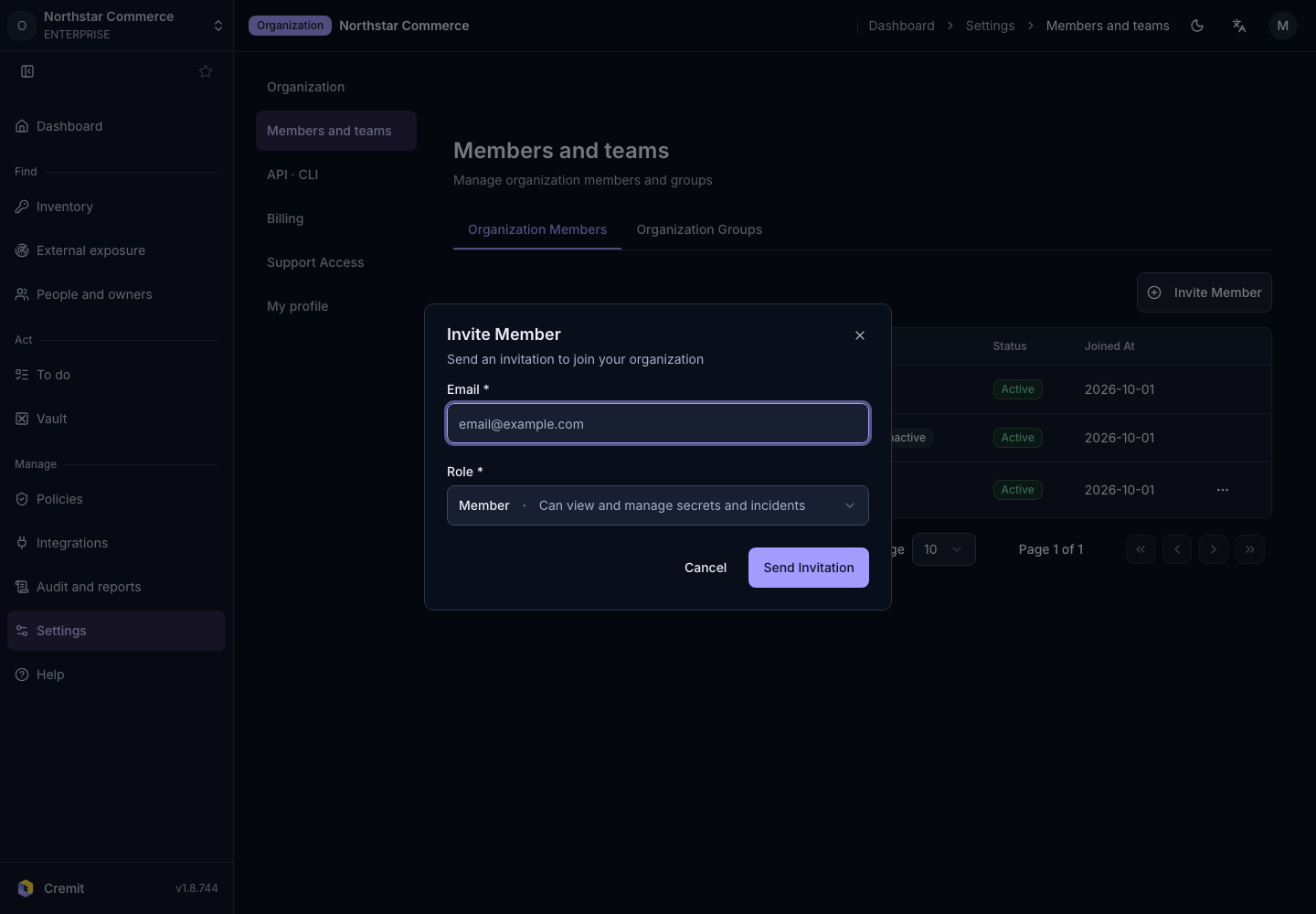
You can choose Admin, Member or Guest. What each role can do is in Roles and permissions.