Inventory
Secret details
What you can check and do in the summary and tabs of a secret's details page.
Select a secret in the list to open its details page. Secrets discovered in code or collaboration tools and items that exist only in a connected vault have different pages. For secrets added manually, see Add a secret manually.
Back to inventory at the top of the page returns you to the list you were viewing.
Discovered secrets
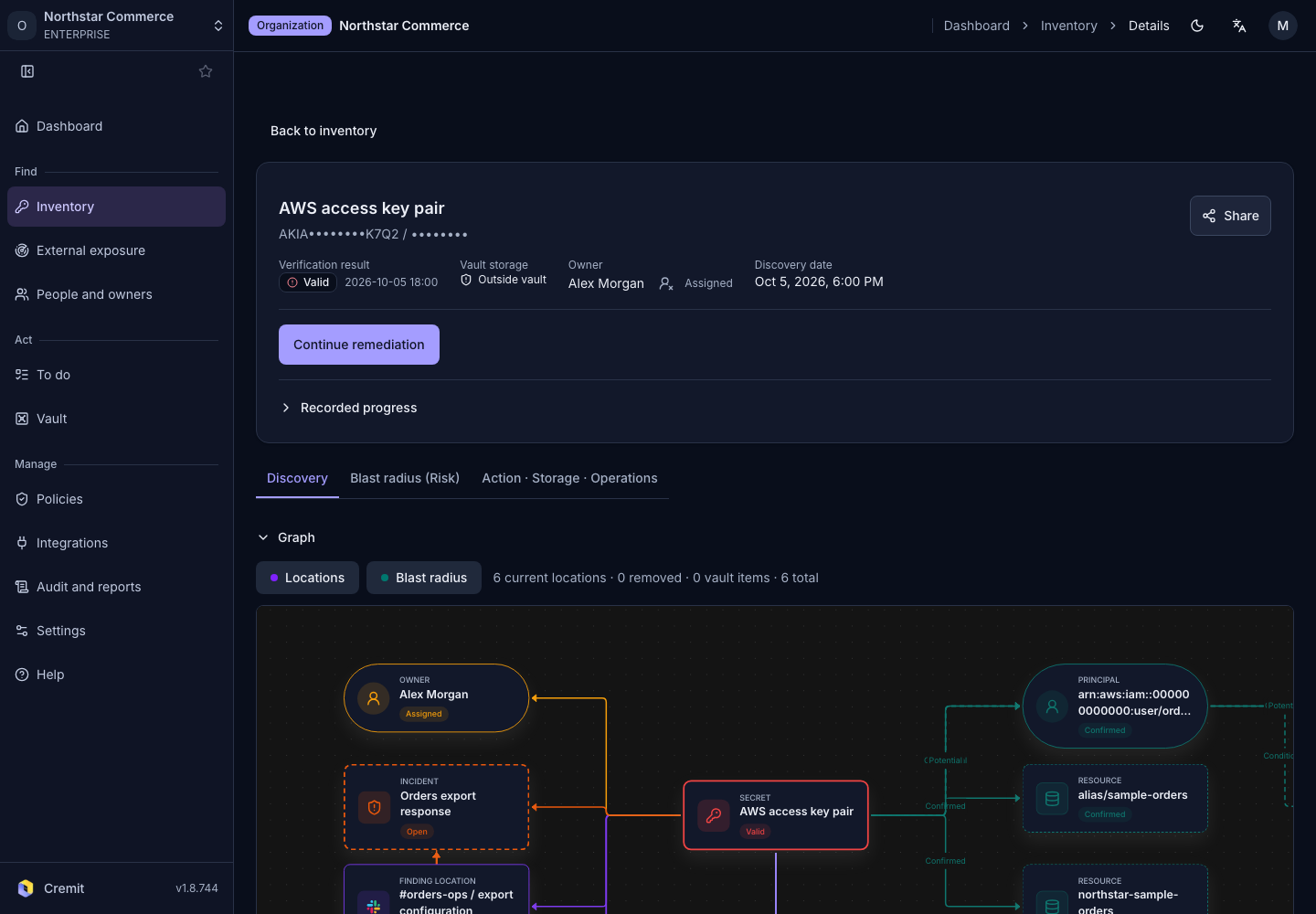
Summary
The top of the page shows the detection rule name and the masked value. Below them:
- Verification result: the verification status and when it was last verified. Verification status explains each status.
- Vault storage: whether the same value is stored in a vault
- Owner: the owner and their state. If you can edit, select it to jump to owner selection.
- Discovery date
The button below the summary is the next step to take, such as Assign owner, Start remediation or Resume remediation. When progress has been recorded, expand Recorded progress to see when Exposed secret revoked, New value in vault and Owner assigned happened.
If your organization can use sharing, you can share the secret from the top right of the summary. See Share a secret.
Tabs
| Tab | Contents |
|---|---|
| Discovery | Graph, History, Locations, Secret connections |
| Blast radius (Risk) | Leak impact, Permissions |
| Action · Storage · Operations | Remediation case, Check and respond, Owner, Incident, Exceptions, Reference information |
See where it was found
- Graph: a diagram of the secret, where it was found and the items linked to it. Your browser remembers whether you expanded or collapsed it.
- History: first discovery, verification status changes, verdicts recorded by a person, re-verification requests and incident creation, in time order. If you can view the audit log, exception, owner, attribute and remediation case changes appear too.
- Locations: each location shows Source, Location, Author, Seen At, Location Status and Incident. Search by path, or filter by Location source and Exposure status. Public locations are marked Public.
- Secret connections: where the same secret connects, split into Found in, Stored in and Usage evidence.
- Above the graph, Locations and Blast radius choose what the graph shows.
See the blast radius
When permission analysis has run for the secret, Leak impact shows the resources and permissions the secret can reach. Permissions shows the permission analysis result for each detection record. To connect permission analysis, see integration guides such as AWS permission analysis.
Take action
- Remediation case: the case in progress and its steps. See Remediation cases.
- Check and respond: request re-verification or record a verdict.
- Owner: assign a person or a team as owner and edit attributes. Confirm a guessed owner with Confirm owner. See Assign and confirm owners.
- Incident: view linked incidents or select Create Incident.
- Exceptions: why the secret was marked as an exception and who did it.
- Reference information: How to rotate this secret and Issuer documentation.
Editing buttons and the Incident area may be hidden depending on your role and permissions.
Vault items
An item that exists only in a connected vault opens as a vault item page. You need permission to view vaults to open it. When the same value is also found in code, the vault item is not a separate row in the list; it is shown in the Vault column of that secret's row.
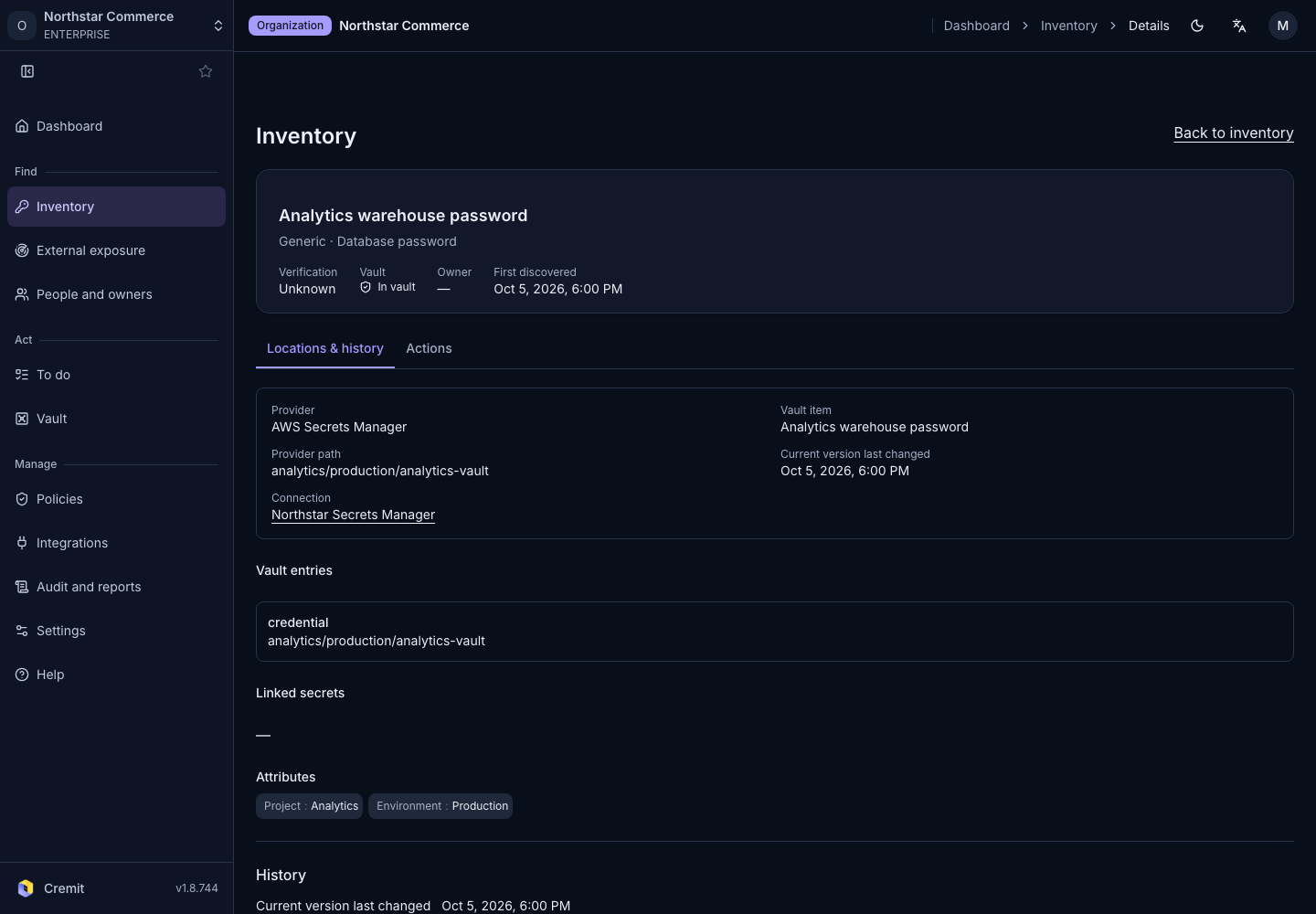
Vault items are not verified, so they have no verification result. The page has two tabs.
| Tab | Contents |
|---|---|
| Locations & history | Provider, Vault item, Provider path, Current version last changed, Connection, Vault entries, Linked secrets, Attributes, History |
| Actions | Owner, Reference information |
- Select Connection to go to the vault connection. It is a link only when you can view integrations.
- Linked secrets links to the details of discovered secrets with the same value.
- When the issuing service is known, Reference information shows Issuer console and a button that opens the console.