Integrations
AWS permission analysis
Register an AWS analyzer, deploy its permissions with CloudFormation, and verify connectivity.
Connect an AWS analyzer
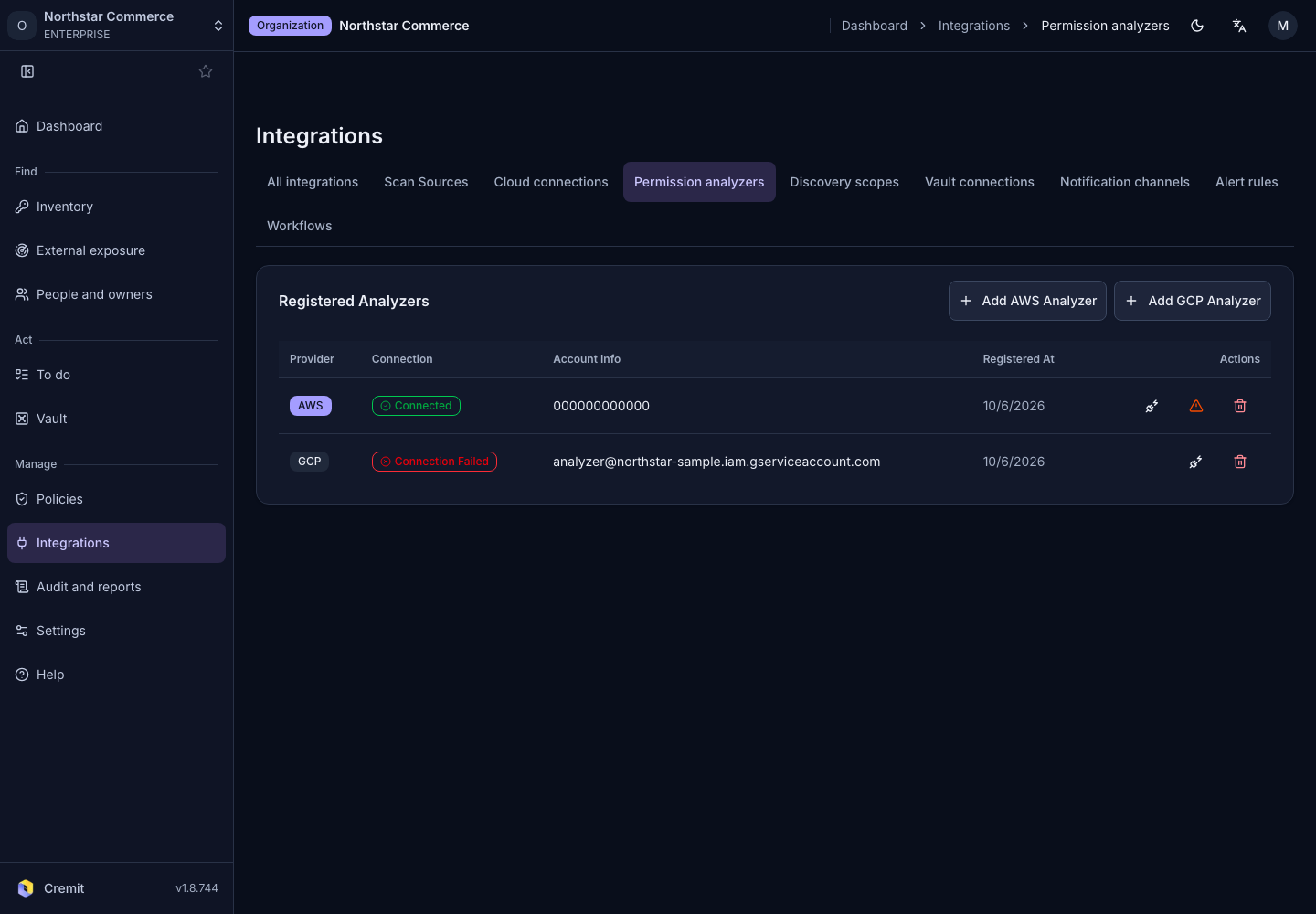
- In Permission analyzers, select Add AWS Analyzer.
- Enter the target AWS account's 12-digit ID in AWS Account ID.
- Choose the stack region in AWS Region.
- Select Save.
- Open Create Stack in AWS Console from the saved setup.
- Review the template permissions and create the CloudFormation stack in AWS.
Follow the official stack creation procedure and check stack completion. Saving analyzer information does not complete AWS role setup.
Verify the analyzer connection
- In Cremit, select Back to Access scope.
- Find the AWS account in the Registered Analyzers table.
- Select that row's Verify Connection action.
- Check its connection status and account information.
Analyzers created through an integrated AWS account have a button leading to that account's AWS integration. If its IAM capability needs a stack update, apply it there first. See Access scope to interpret analysis results.