Inventory
Needs action
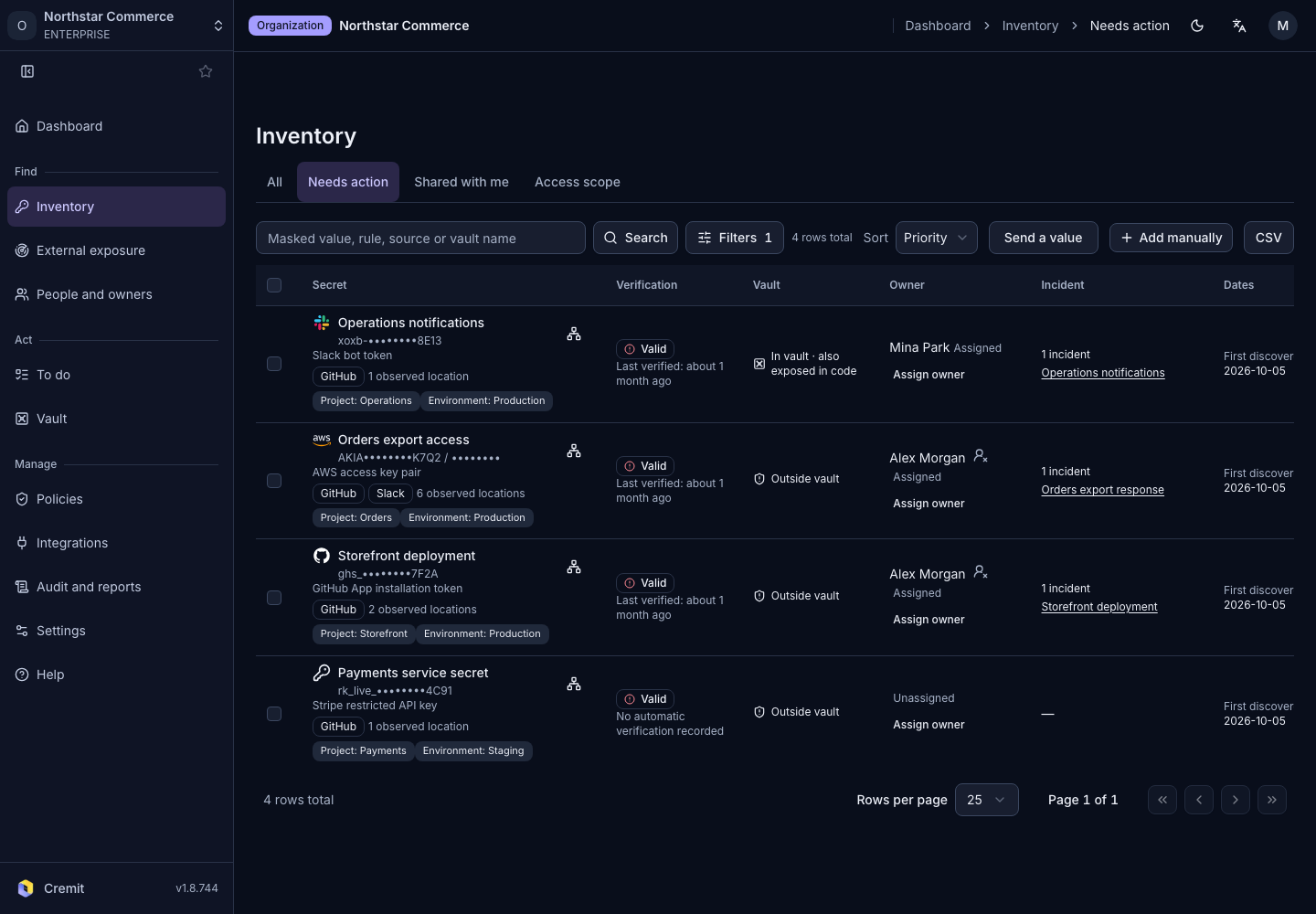
Which secrets land in Needs action, the order they appear in, and what to do with each one.
Needs action lists only the secrets that work right now. Open it by selecting Needs action under Inventory in the sidebar. Guests do not have this menu.
Which secrets appear
Secrets whose verification status is Valid or Valid (manual review) appear here. A secret appears if any of its detection records has one of these statuses.
These secrets do not appear:
- Secrets with any other verification status. Secrets that need a person to check them are under the Needs manual review quick filter in All.
- Items that exist only in a connected vault, and secrets added manually, because they have no verification result.
- Secrets marked as exceptions. See Hide results and false positives.
Once you revoke a secret and re-verify it, its status changes to Revoked and it leaves the list.
The order
The default order is Priority. These criteria are compared in turn:
- Secrets stored in a vault but still exposed in code
- Secrets whose owner's account is inactive, then secrets with no owner, then secrets with a guessed owner
- Secrets found to have broad, admin-level access
- Secrets currently observed by external exposure scanning
- Secrets discovered earlier
You can choose another order in Sort. Turn on Group by owner in the Filters panel to group the current page by owner state.
What to do with each secret
- Open a secret from the list. Its details open on the Action · Storage · Operations tab.
- Check the next step in the button below the summary. It shows Assign owner when there is no owner, and Start remediation when you can start remediation. When a remediation case is already in progress, it shows Resume remediation.
- Set the owner. In Owner, assign a person or a team. If a guessed owner is correct, select Confirm owner.
- Replace the secret. Expand Reference information and follow How to rotate this secret: issue a new secret, replace the old value everywhere it is used, and revoke the exposed secret.
- After revoking it, select Re-verify after revocation in Check and respond. When a remediation case is in progress, this button is inside the case.
Remediation cases describes the case steps, and Assign and confirm owners describes owner assignment.
The buttons you see and what you can edit depend on your role.