Inventory
Share a secret
How to share secret information with people and teams in your organization, and how to send a value such as a password or token that can be viewed a set number of times.
Cremit has two kinds of sharing: Information, which shares what Cremit knows about a secret, and Send a value, which sends the value itself.
| Information | Send a value | |
|---|---|---|
| What is shared | Secret information such as where it was found, its verdict and its assignee. The value is not shared. | The value itself, such as a password or token |
| Recipients | People and teams in the organization, guests included | Members of the same organization, guests excluded |
| How long it lasts | No expiry, a number of days, or a chosen date | 1 hour to 7 days. Deleted once it has been viewed the set number of times. |
| Before first use | Works without setup. | An admin turns it on once in the sharing policy. |
Share information
By default, owners, admins and the secret's assignee can share. You are the assignee when you or a team you belong to is assigned to the secret. Guests cannot share. If you can manage a secret but are not allowed to share it, you see View access instead of Share.
Share a secret
- Open the secret from Inventory. To share several at once, select them in the list and choose Share. You can select up to 100 in the list.
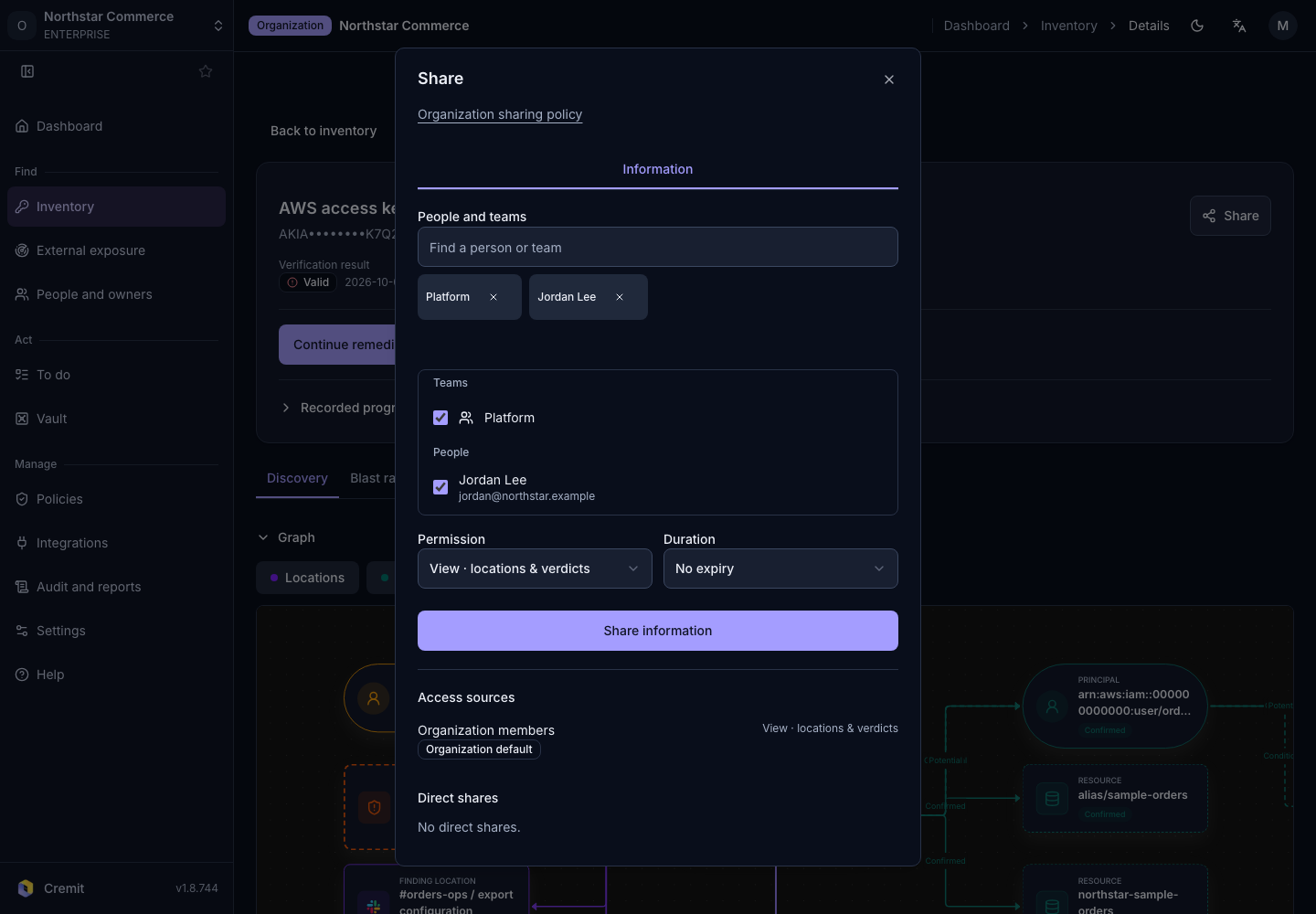
- Choose Share at the top right.
- Pick people or teams in Find a person or team. You can pick up to 50 at once.
- Choose a Permission.
- View: see where the secret was found and its verdict.
- Manage: edit the information and share it again with others.
- Choose a Duration: No expiry, a number of days, or Choose date. If the sharing policy sets a maximum duration, you cannot choose a longer one.
- Choose Share information.
The share dialog shares information about the secret, not its value. To send a value, follow the Send a value steps below.
Guests, and teams that include guests, can only be given View permission.
When approval is required
If Require approval to share information is on in the sharing policy, a share needs approval first.
- In the share dialog, pick an approver under Approver. Approvers are owners and admins other than you and the recipients.
- Choose Request approval to share information. The request shows as Awaiting approval, and the approval window is at most 10 minutes.
- The approver gets the request by notification and email, then chooses Approve or Decline in that secret's share dialog.
Until it is approved, the requester can withdraw it with Cancel request.
Recipients
- An in-app notification and an email, "A secret was shared with you", arrive within 5 minutes of the share.
- Shared with me in Inventory lists only the secrets shared with you.
- A share with an end date sends one more notification 24 hours before it expires.
- Guests see only the secrets shared with them. In the guest menu, open Inventory and choose a secret's name to see what was shared.
Change the duration or revoke
In the same share dialog, Who has access has Update duration and Revoke.
- Revoking removes access immediately and notifies the recipient.
- Expired and revoked shares stay in Sharing history.
Send a value
Turn it on once (owners and admins)
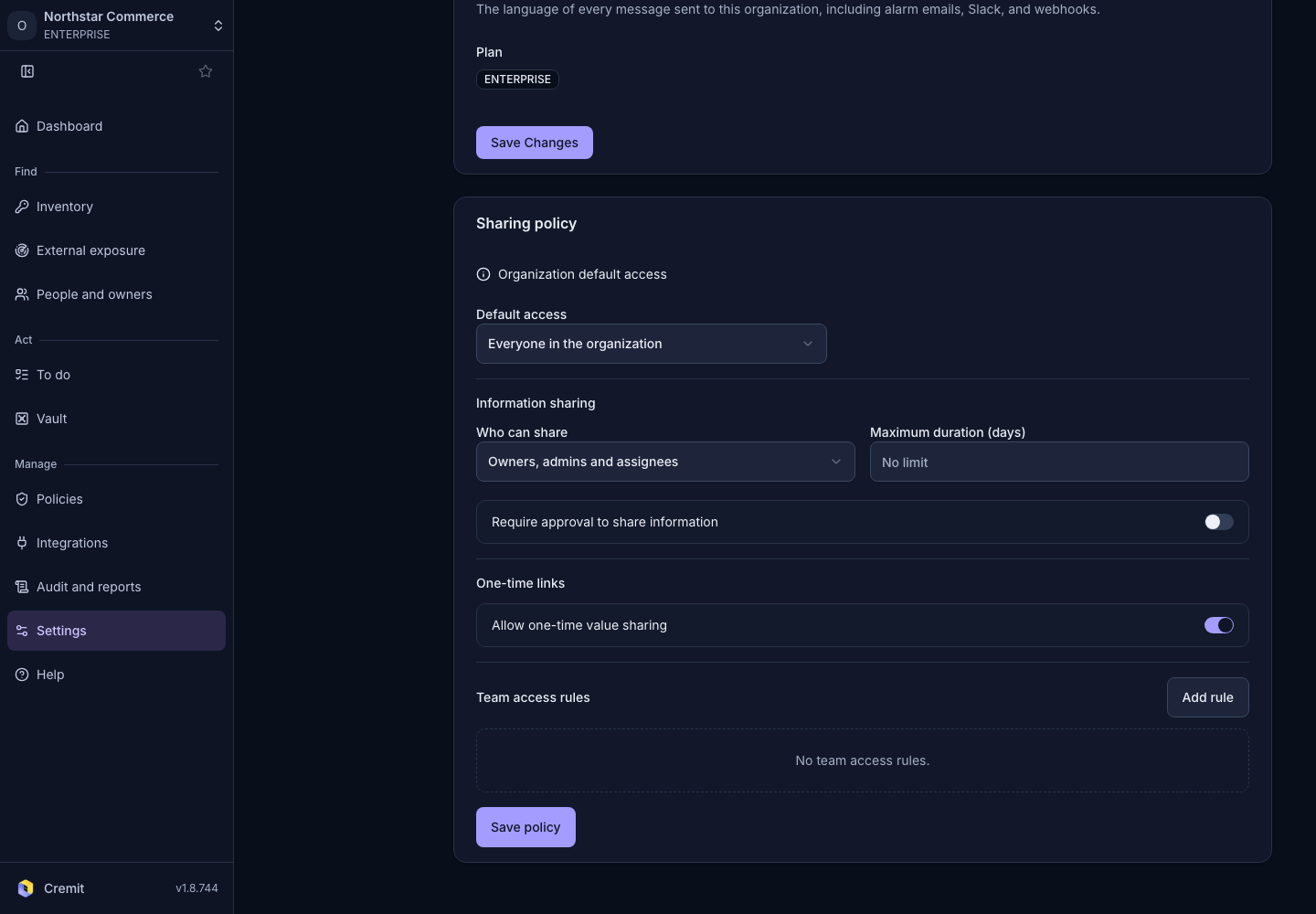
In Settings > Organization, under Sharing policy, turn on Allow one-time value sharing.
- Sending values is unavailable while Require approval to share information is on.
- Until it is on, the button below does not appear.
Send
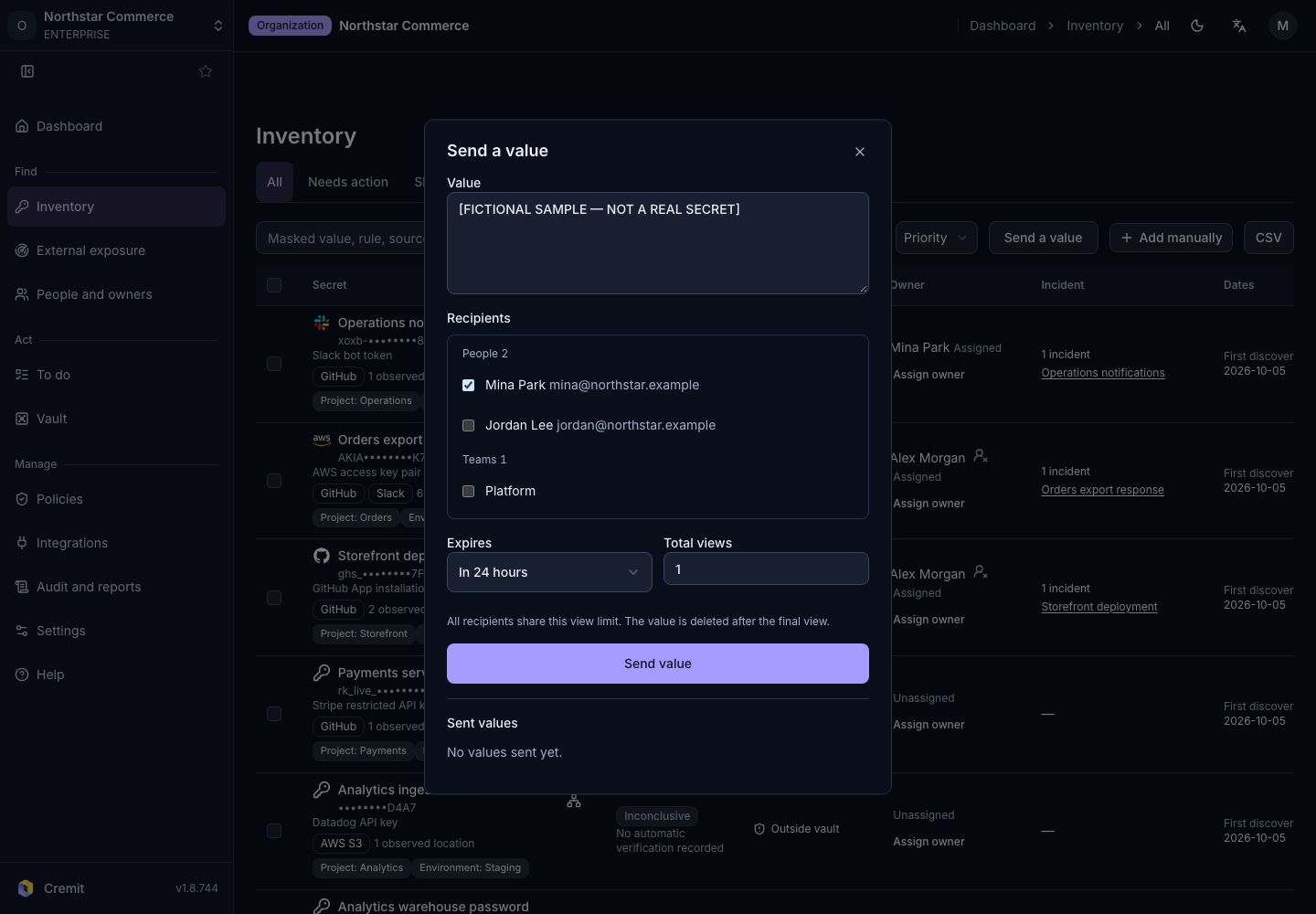
- Choose Send a value at the top right of Inventory. Owners and admins see this button.
- Enter the Value and choose the Recipients.
- Under Expires, choose 1, 24, 72 or 168 hours. The default is 24 hours.
- Set the Total views. The default is 1. All recipients draw on the same count.
- Choose Send value.
Manage what you sent in Sent values.
- Each value shows Awaiting view, Viewed, Expired or Revoked.
- Use Copy view link or Revoke on each value.
Receive and view a value
- Open the link in the email "A value was shared with you on Cremit" or in the in-app notification. The email does not contain the value. It shows only the organization, the sender, the expiry time, the number of views left and the view link.
- Sign in to Cremit with the recipient's own account.
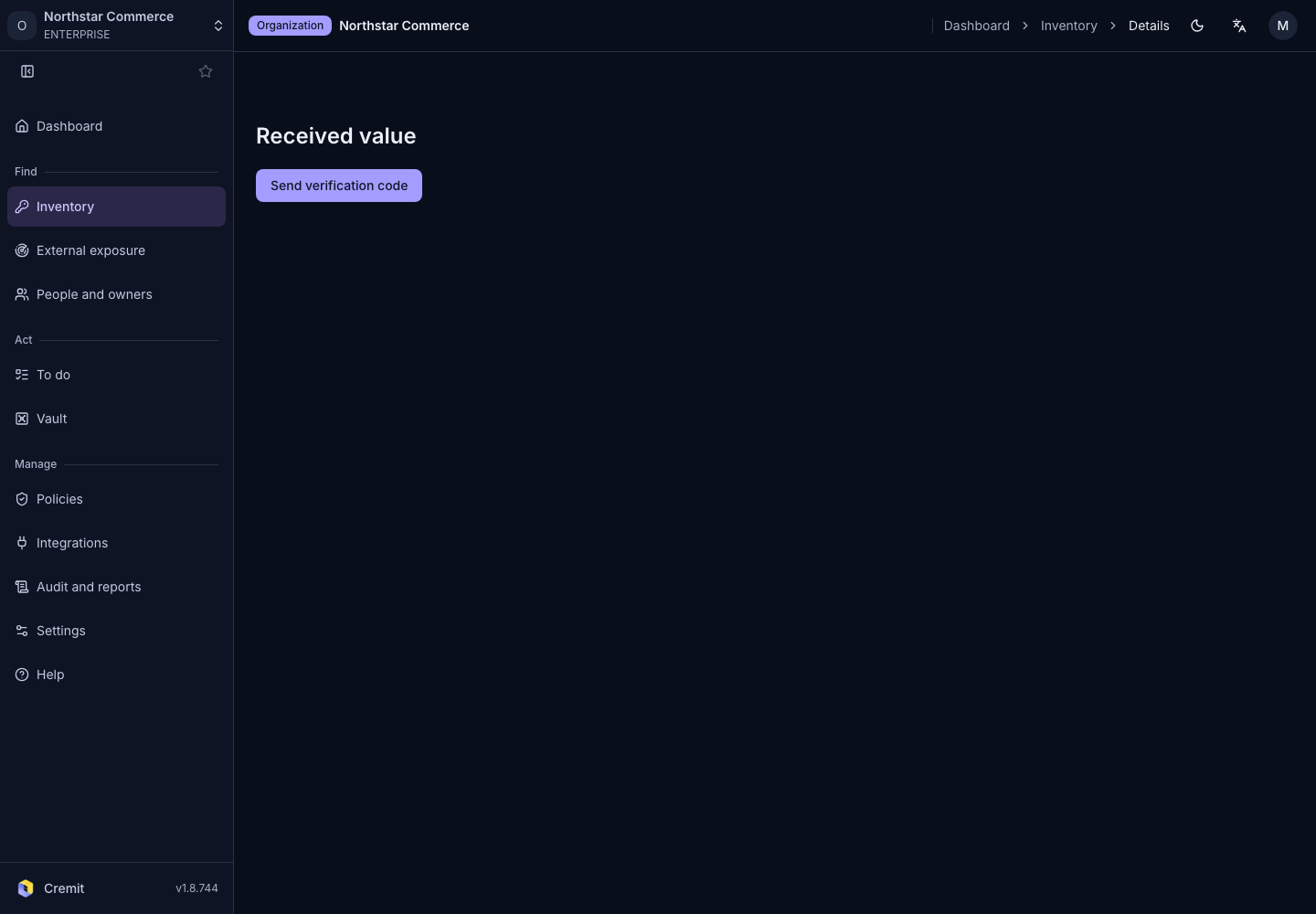
- Choose Send verification code and enter the 8-digit code sent to the account's email. The code is valid for 3 minutes and allows 3 attempts.
- Choose Verify and view value to see the value. When you are done, choose Close value.
When a value is deleted
- As soon as the last view ends
- As soon as the sender revokes it
- After the expiry time (cleaned up within 5 minutes)
A deleted value cannot be viewed again. Send a new one if needed.
Sharing policy (owners and admins)
Location: Settings > Organization > Sharing policy
| Setting | Default | What it does |
|---|---|---|
| Default access | Everyone in the organization | Switch to Restricted so only assignees, people it is shared with and people matched by team rules can see it. |
| Who can share | Owners, admins and assignees | Can be widened to People with manage access. |
| Maximum duration (days) | No limit | The longest an information share can last. |
| Require approval to share information | Off | When on, a share names an approver and takes effect once approved. |
| Allow one-time value sharing | Off | Turns on sending values. |
| Team access rules | None | Gives a team view access ahead of time by scan source, code repository or environment. |
Questions
Can someone who learns the view link see the value? No. They would need to sign in as the named recipient and enter the code sent to that account's email.
If I send a value to several people, can each view it once? The view count is shared by all recipients. For three people to view it once each, set Total views to 3.
Members already see all secret information by default. When is sharing information useful? To show part of the inventory to a guest, or after switching Default access to Restricted to open specific secrets to the people and teams who need them.
I don't see the Send a value button. Check that Allow one-time value sharing is on and Require approval to share information is off in the sharing policy. The button at the top right of Inventory appears only for owners and admins.
See Roles and permissions for what each role can do.